Quittora

Receipts in order – without retyping.

Drag in invoices, scans and till receipts: Quittora reads date, issuer and amounts, gives every file a meaningful name and files it by year and quarter – locally on your PC.

  • €49.00 one-time
  • 15-day free trial
  • Runs only on this PC
  • No cloud
  • No subscription
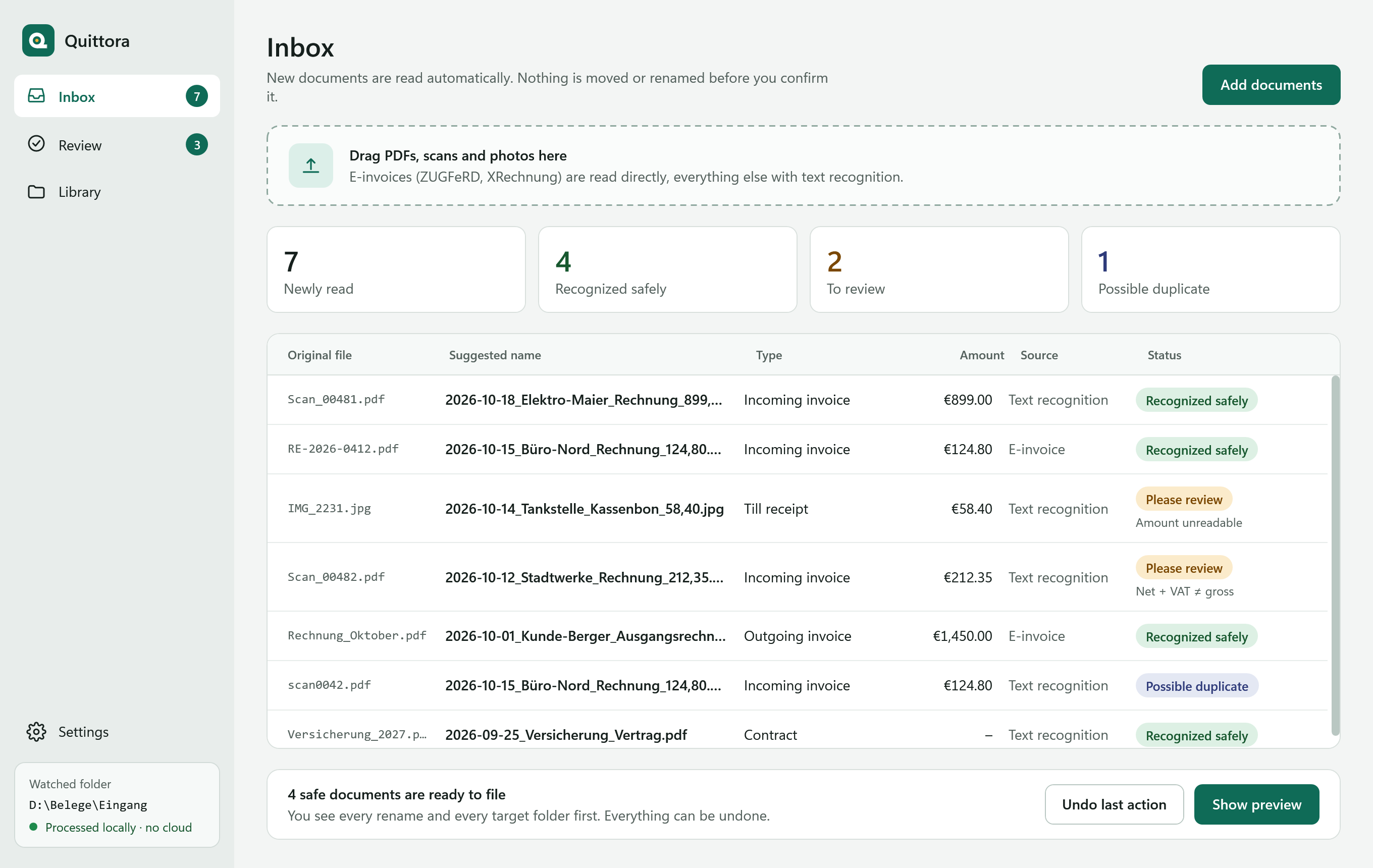
The Quittora inbox: seven newly read documents with original file, suggested name such as “2026-10-18_Elektro-Maier_Rechnung_899,00.pdf”, type, amount, source and the status “Recognized safely”, “Please review” or “Possible duplicate”.
System
Windows 10 · 11
Data
Stays on the PC
Reads
PDF · scan · photo · e-invoice
Trial
15 days free

01How it works

Three steps to tidy records.

Drag in, check briefly, file. Nothing is moved or renamed before you have seen it.

  1. Drag in

    Drop PDFs, scans, photos and e-invoices onto the window – or let Quittora watch a folder, such as your scan or download folder.

  2. Review

    What was read safely is ready right away. Where Quittora is unsure, it shows the original with the values marked and asks.

  3. File

    Look at the preview, confirm, done. “Undo last action” puts the whole batch back.

Read & name

Meaningful names, tidy folders.

Quittora reads the PDF’s text layer, the embedded e-invoice or – for scans and photos – the text from Windows text recognition. The result is a name like 2026-10-12_Stadtwerke_Rechnung_212,35.pdf and a place in 2026\Q4\Eingang.

  • Names and folders follow your templates, with a live preview in the settings
  • The preview shows every rename and every target folder before anything happens
  • When moving, originals go to the recycle bin – never lost for good
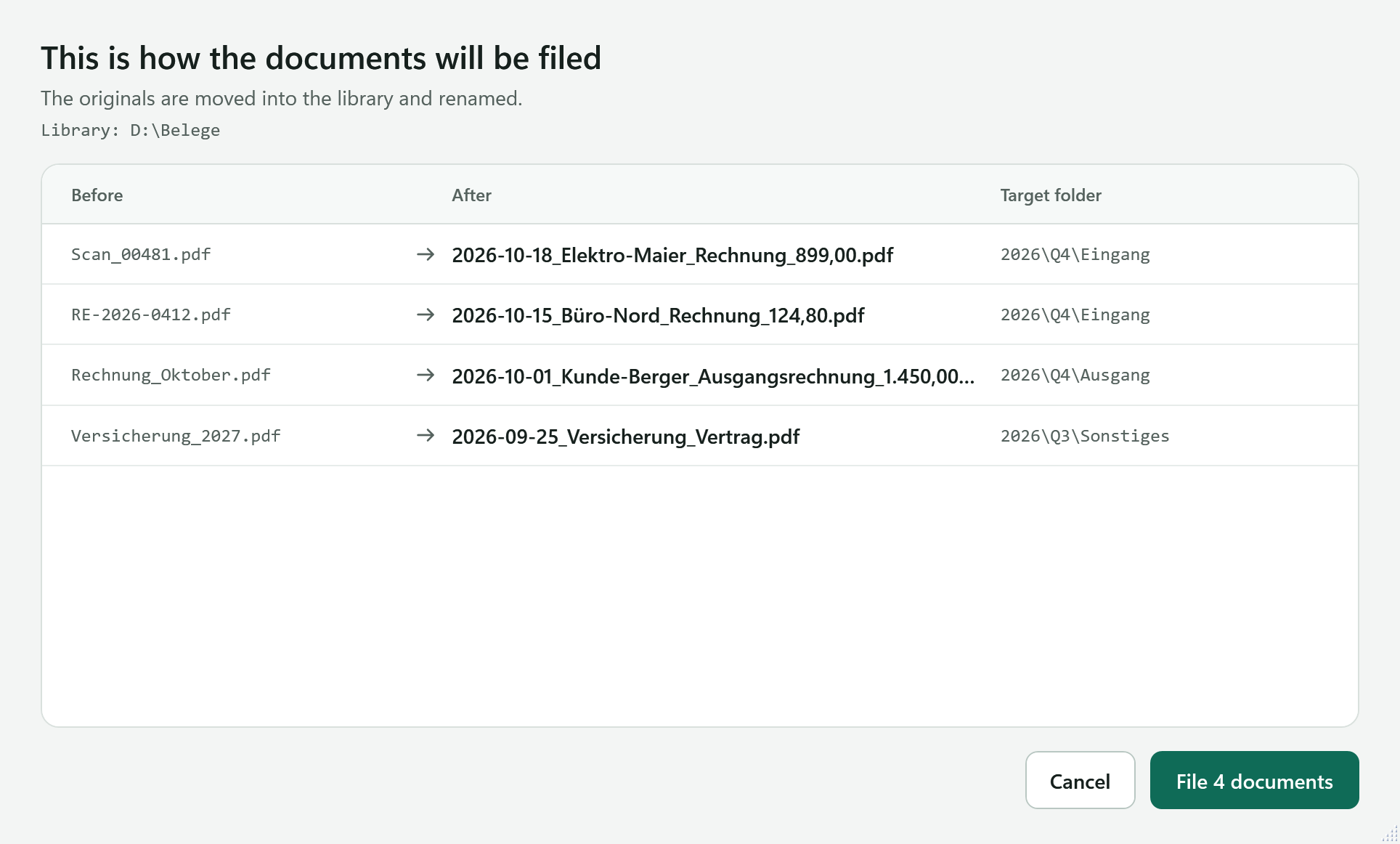
The preview before filing: list of documents with original name, new name and target folder, the button to file below.

Review

Where it is unsure, Quittora asks.

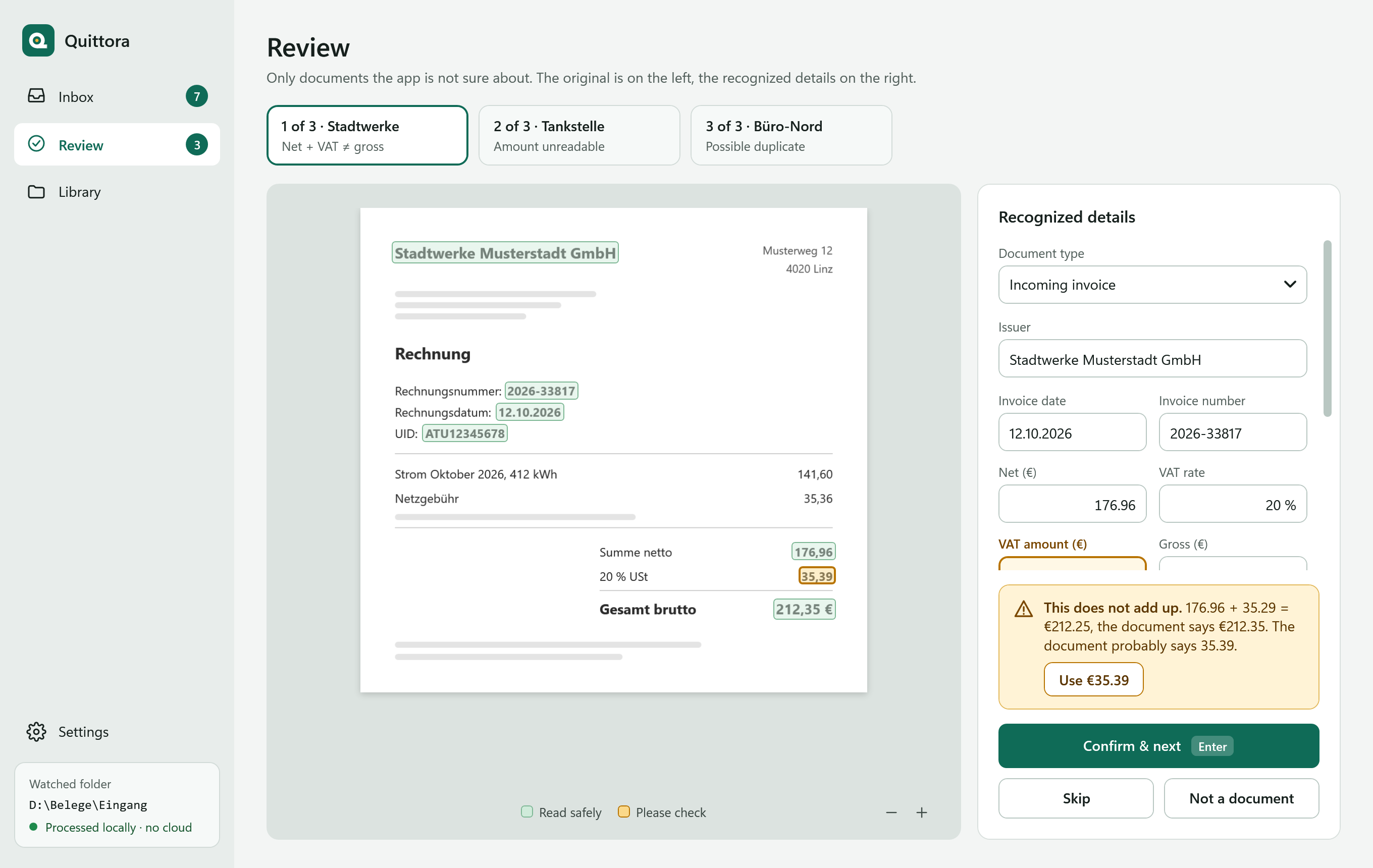
In “Review” you see the original with the values marked – green read safely, amber please check. If a document does not add up, Quittora shows the calculation and suggests the likely correction.

  • One-click correction when net + VAT does not equal gross (such as 35.29 instead of 35.39)
  • To pick a value, draw a box around it on the document
  • No mouse needed: Enter confirms, Alt+arrow moves on, Ctrl+Z takes back
  • Quittora remembers confirmed issuers for next time
Review: on the left the original invoice with values marked in green and amber, on the right the fields with the note “Net + VAT ≠ gross” and the suggested correction.

Library & export

Everything found. Ready for your tax advisor.

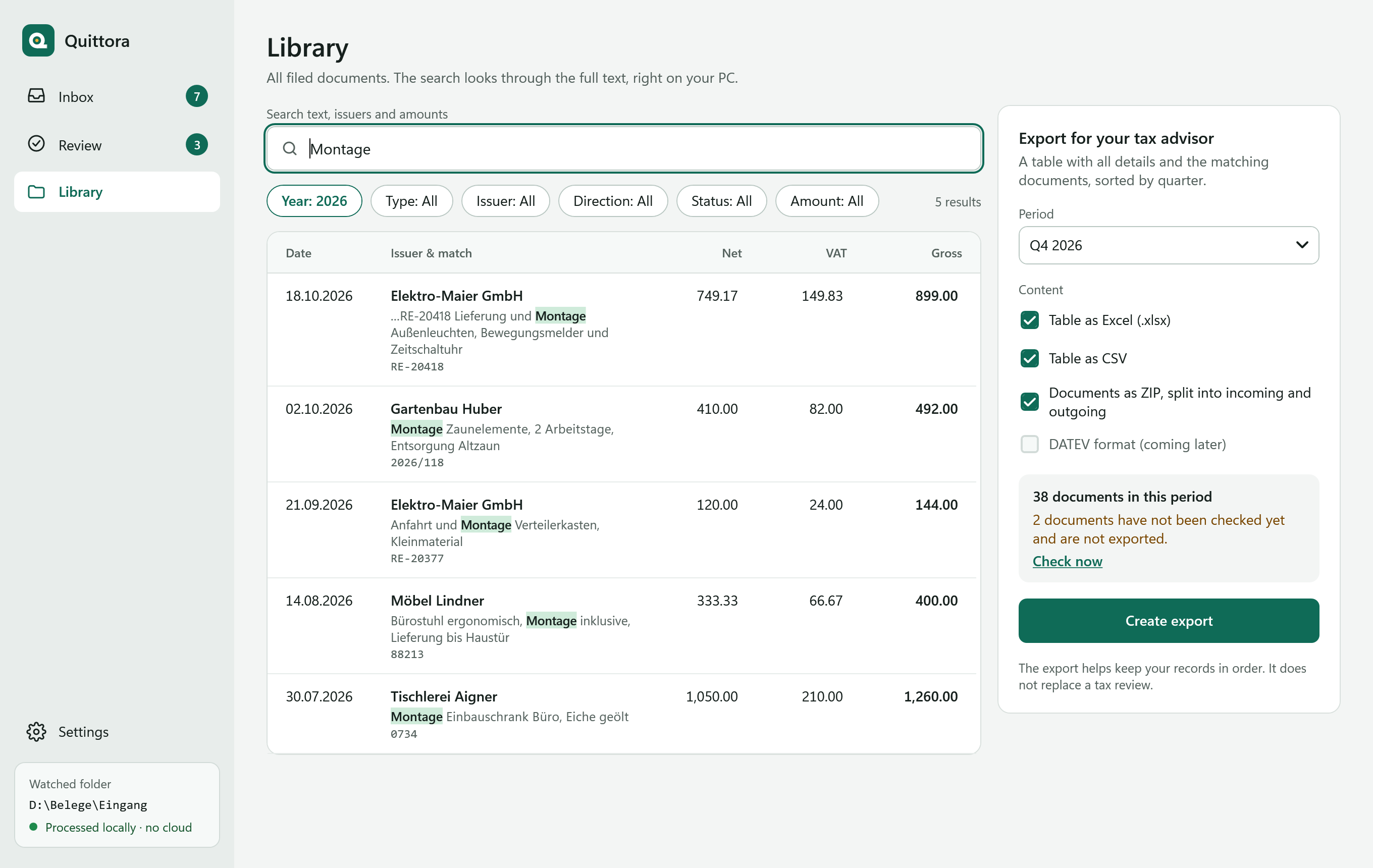
The library searches the full text of every filed document in a fraction of a second – including amounts like “212.35” and dates like “12.10.2026”. The export for a quarter or a year takes one click.

  • Excel

    Documents, VAT lines and totals in one workbook.

  • CSV

    One row per document – for any spreadsheet.

  • Documents as ZIP

    Every document of the period with a checksum manifest.

The library: a search for “Montage” in 2026 with five results and the match highlighted, filters for year, type, issuer, direction, status and amount, on the right the export for the tax advisor with Excel, CSV and ZIP.

02And more

Everything tidy records need.

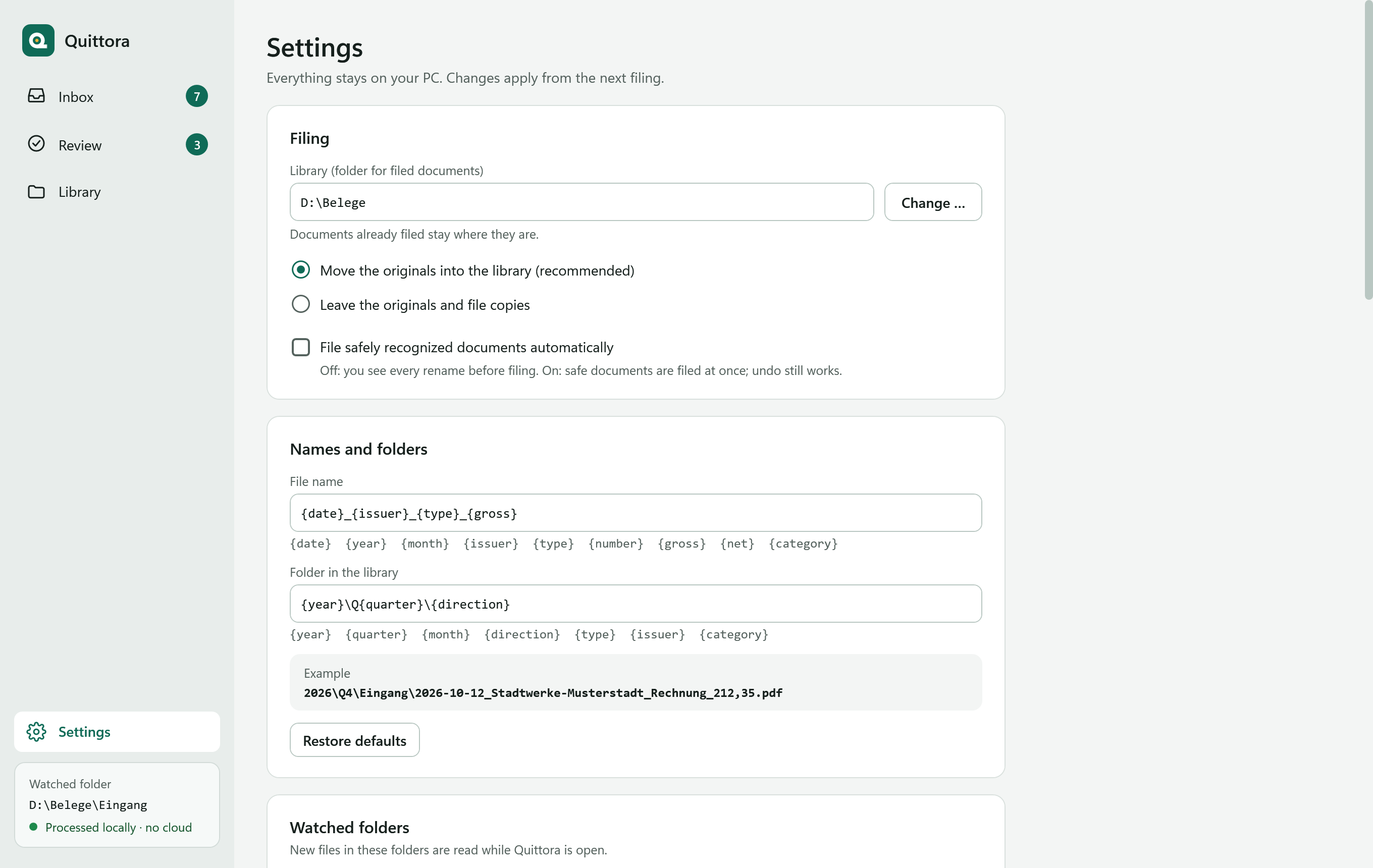
Quittora settings: library folder, move or copy originals, templates for file name and folder with the example “2026\Q4\Eingang\2026-10-12_Stadtwerke-Musterstadt_Rechnung_212,35.pdf”, and watched folders.
  • Watch folders

    While Quittora is open, it reads new scans and downloads from folders of your choice on its own.

  • Your own templates

    Placeholders such as date, issuer, type and amount for file names and folders – with a preview.

  • Possible duplicates

    The same document twice? Quittora marks it as a “Possible duplicate” instead of filing it again.

  • Totals checked

    Net, VAT and gross have to add up – VAT rates 20/13/10 % and 19/7 %, several rates on one document, too.

  • VAT ID and IBAN

    VAT IDs and IBANs are recognized, IBANs checked by their check digits; “My details” separate incoming from outgoing.

  • Learns as you go

    Confirmed issuers are recognized more reliably next time. Learned rules can be viewed and deleted.

  • Keyboard

    Inbox, review and library work fully with the keyboard.

  • Backup

    Back up and restore the database with one click. Before updates Quittora makes a backup itself.

  • German and English

    The interface in both languages; file names always use the German terms an accountant expects.

03Local

Your receipts stay on your PC.

No account, no cloud, no telemetry. Quittora reads, names and files without sending a single document over the network – text recognition comes from Windows itself.

Preview before filing

What Quittora recognizes

  • Date
  • Issuer
  • Document number
  • Net
  • VAT
  • Gross
  • VAT rate
  • VAT ID
  • IBAN
  • Type
  • Incoming / outgoing

From the PDF text, the e-invoice (ZUGFeRD, XRechnung) or Windows text recognition. Every value has a confidence; whatever is below the threshold goes to “Review”.

Nothing without your OK

New documents are read and named; by default they are filed only when you confirm the preview. Automatic filing of safely recognized documents is something you switch on explicitly.

Originals stay as they are

Quittora changes no file. When moving, originals go to the recycle bin, never deleted for good.

One click back

“Undo last action” puts every document of the batch back where it was.

Never locked

Even after the trial, library, search and export stay usable. Your data is never locked away.

What goes over the network

  • No contentDocuments, recognized details and the database never leave the PC.
  • No telemetryNo usage statistics, no crash reports, no advertising.
  • LicenceTrial and purchase through Microsoft Store; licence keys of the direct version are checked offline.
  • UpdatesCome through Microsoft Store. Quittora itself opens no connection for them.

Privacy in detail

To be honest: recognition is not perfect – poor scans, crumpled till receipts or unusual layouts can be misread. That is why Quittora asks when it is unsure. And the export helps keep your records in order; it does not replace a tax review.

04Who it’s for

Made for freelancers and small businesses.

In Austria and Germany – with the VAT rates, VAT IDs and terms your accountant expects.

Freelancers & sole traders

For everyone who collects their own receipts and would rather not spend the end of the quarter renaming files.

Small businesses

Incoming and outgoing invoices kept apart, till receipts, credit notes and contracts named cleanly and easy to find.

Handing over to your tax advisor

Excel with documents, VAT lines and totals, plus every document of a quarter or year as a ZIP with a manifest.

Austria

VAT rates of 20, 13 and 10 %, VAT IDs (ATU…), folders by year and quarter.

Germany

VAT rates of 19 and 7 %, USt-IdNr. and e-invoices in ZUGFeRD and XRechnung format.

No migration

Quittora works with your folders and files. No import into someone else’s system, no lock-in.

05Price

Buy once. No subscription.

15-day free trial – with all features, no account.

Never locked

After 15 days

Stays usable

even without buying

  • Search the library and open documents
  • Export for your tax advisor
  • Backup and restore
  • Only filing new documents needs the full version
Frequently asked questions

Price incl. VAT; in Microsoft Store the price shown there applies.

06FAQ

Frequently asked questions

Does Quittora really run only locally?

Yes. Reading, recognition, naming, search and export run on your PC. There is no account, no cloud and no telemetry. The Store version only asks Microsoft Store about the licence – documents and recognized details are never transferred.

Which documents can Quittora read?

PDFs with text, scanned PDFs, photos and scans as JPG, PNG or TIFF, and e-invoices in ZUGFeRD and XRechnung format. E-invoices are read directly, everything else from the PDF text or with Windows text recognition.

Is anything moved without my consent?

No. New documents are read and named; they are filed only when you confirm the preview – unless you switch on automatic filing of safely recognized documents in the settings. “Undo last action” puts the whole batch back, and originals go to the recycle bin when moved, never deleted for good.

What if Quittora misreads something?

Values Quittora is unsure about go to “Review” – with the original next to them and the spots marked. If an invoice does not add up, a correction is suggested. Confirmed issuers are recognized more reliably next time.

Does Quittora replace my accounting or tax advisor?

No. Quittora makes sure your documents are named right, sorted and easy to find, and prepares the export for your tax advisor. It does not post entries and makes no promises about tax reviews.

What happens after the trial?

The trial lasts 15 days with all features. Afterwards library, search, export and backup stay usable – your data is never locked. Only filing new documents needs the full version.

Which Windows versions are supported?

Windows 10 (version 1809 or later) and Windows 11, 64-bit. For scans and photos Quittora uses Windows text recognition; the German language pack should be installed for German documents.

How do I back up my data or move to a new PC?

Your documents are ordinary files in your library folder. You back up the database with the search index, rules and settings with one click in the settings and restore it there, too.

Never retype a receipt again.

15-day free trial. No account, no cloud, no subscription.